
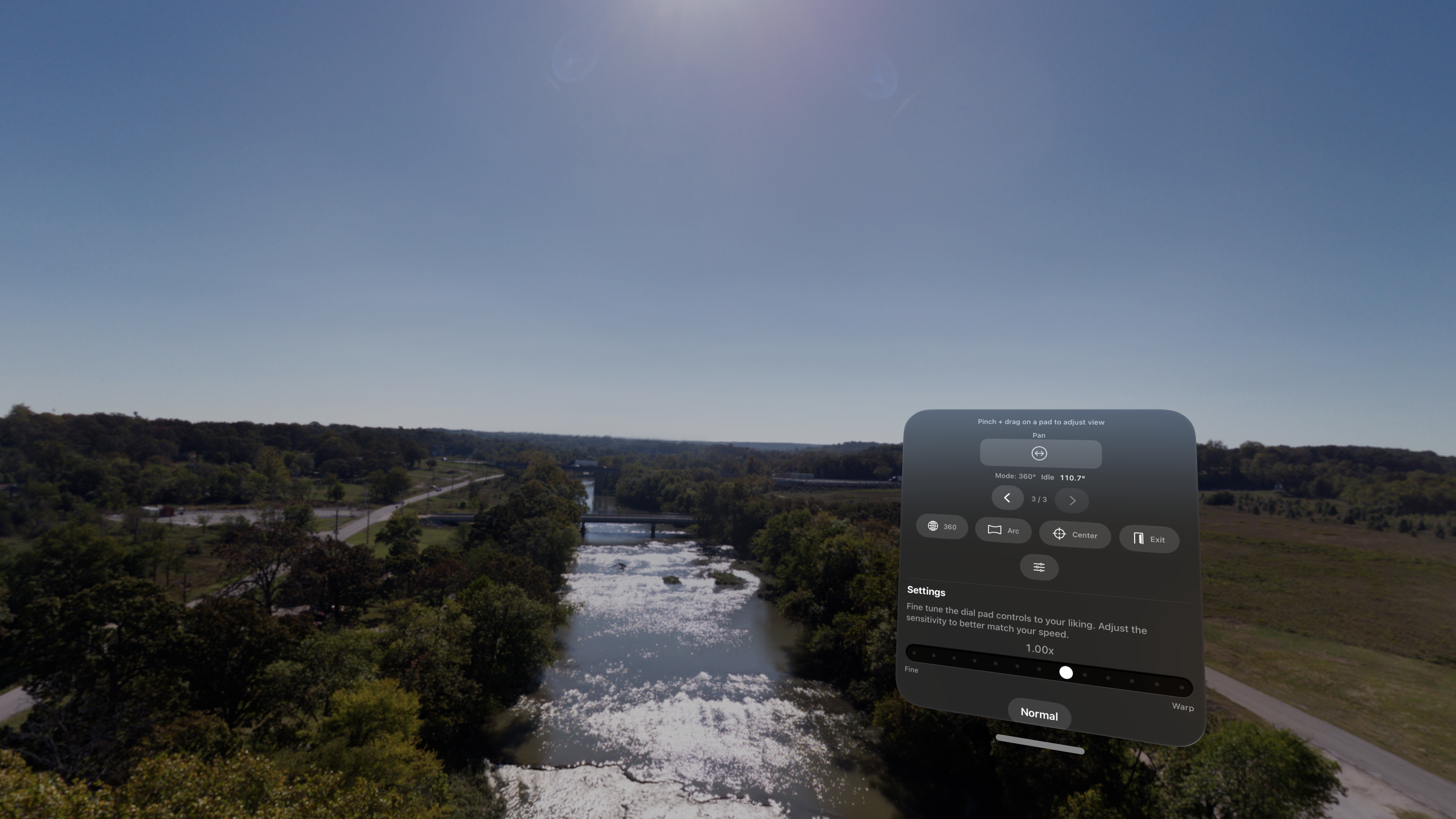
1. Open Horizon 360
Launch the app on Apple Vision Pro. The picker window lets you choose images from Photos or Files.
Pick your images, enter the immersive viewer, and move through your queue with simple controls. Horizon 360 is built to get out of the way once the photo is open.
Most sessions are simple: select images, let Horizon 360 open the viewer, then use the control window when you want to fine-tune the view.
The shortest path from photo to panorama.
Launch the app on Apple Vision Pro. The picker window lets you choose images from Photos or Files.
Pick one image or multi-select a batch. Horizon 360 creates a queue when more than one image is selected.
The immersive viewer opens automatically. Use the control window to rotate, resize, reposition, or move through the queue.
Horizon 360 can open images from Photos or from the Files app. Files can come from local storage, iCloud Drive, or any file provider available on your device.
For the smoothest queue experience, keep related panoramas together and select them in the order you want to view them.
Use the companion control window to tune the viewing experience.
Adjust yaw to turn the panorama around you. Recenter when you want to return to the starting orientation.
Use previous and next controls to step through selected images. If you selected a batch, the queue stays ready.
Depending on the image, Horizon 360 can present it as a full 360 view, a curved arc, or a flat image.
Send a short note with what you expected, what happened, and what kind of file you were viewing.
Email: info@submergedlogic.com